
Scheduling
Plan the week ahead. Handle the PM wave. Let customers book their own slot.
Scheduling is a different job from dispatch. You're not moving today's jobs around — you're laying down next Tuesday's work order for Mrs. Jenkins's furnace tune and letting your Google-search customer pick a Thursday morning that fits.
Where scheduling ends and dispatch begins
A dispatcher's job is to move today's jobs around when the day changes. A scheduler's job is to make sure next Tuesday has the right jobs on the right techs at the right times before it starts. Same calendar surface, different mode.
TradeVan's calendar handles both. Week view for planning ahead, day view for tracking today, dispatch grid for shifting jobs live. Each tech has working hours, days off, and on-call rotation set once in Settings; the calendar respects them without the scheduler having to remember who's on vacation the second week of August.
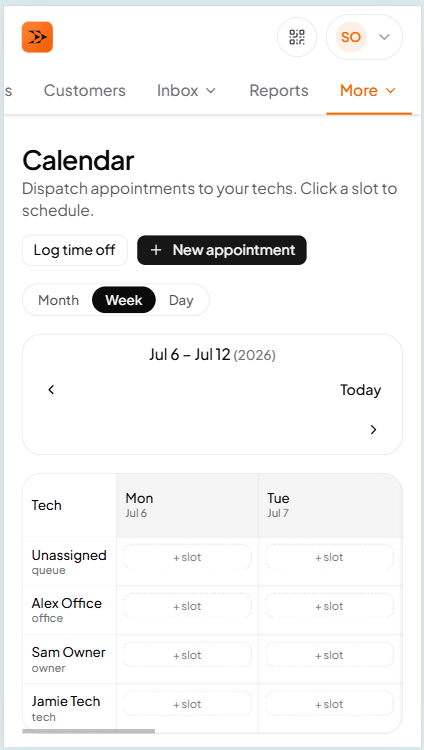
Week view
Every tech, every day, every slot the customer picked
Working hours, days off, on-call rotation, closed shop days — the calendar reads all of it. Drop a job into a slot that violates any of those and TradeVan warns you before you commit.
How dispatch handles today →The PM wave is scheduled without you sitting there
March comes. Every customer with a semi-annual PM contract needs a spring AC tune-up. 200 visits across 6 weeks across 4 techs. On a whiteboard this is the worst two evenings of your year.
In TradeVan the PM plan template generates the visits automatically at the right time of year. They land on the calendar unassigned so you can assign them onto techs and days in one pass — drag, drop, done. You still nudge individual visits around if a customer prefers Tuesday afternoons, but you're not hand-creating 200 rows.
Customer self-book
Customers can pick their own slot on your public page
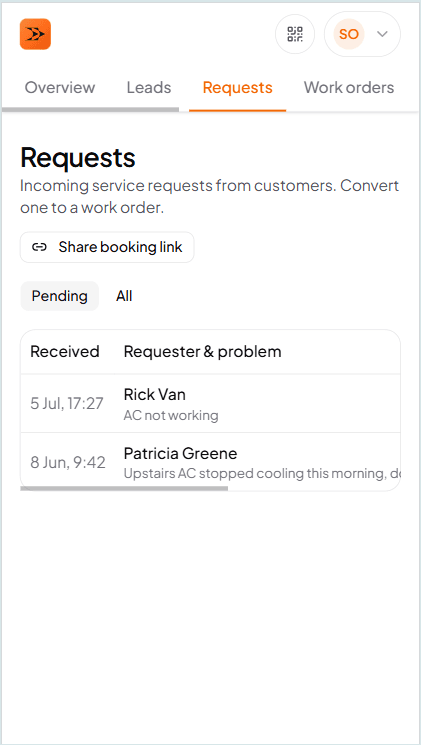
Opt-in. Your /shop/<slug> page offers a self-book flow; the customer sees the slots you've actually got open, picks one, and the booking lands in your Requests inbox for a one-tap conversion to a scheduled work order.
On the truck
Once scheduled, the tech's phone shows it
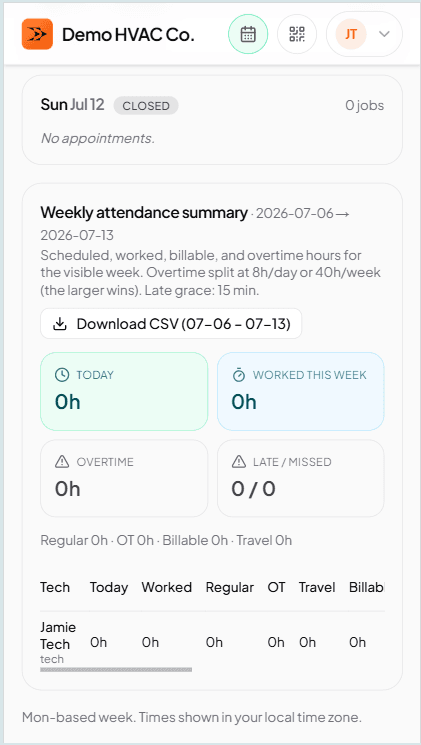
Every scheduled job appears on the tech's day view sorted by scheduled time. Tap in — customer, address, checklist for the job type. Everything works offline; every status button records instantly.
Frequently asked questions
Try TradeVan free for 21 days.
Sign up with email. Plan next Tuesday's schedule in under 10 minutes. No card required.